Skip to content
Back to work

Website · Business tools

Coxley Construction

A website and a phone-first dashboard for a West Yorkshire building firm, with the work linked up from first enquiry to invoice, weekly pay and the monthly CIS return.

Problem

Great work, with nowhere to show it

Coxley Construction builds extensions, loft conversions, bathrooms, retaining walls and Yorkshire stone patios across West Yorkshire. The work was strong, but it lived mostly on Instagram, and there was no proper home for it or for the enquiries it brought in.

The owner spends the day on site, not at a desk. Whatever we built had to be run entirely from a phone, with no code, no hosting dashboards and nothing new to learn.

Approach

A site that sells the work, and a dashboard that runs the business

The public site leads with the jobs themselves: full project write-ups, photo galleries and a before-and-after slider. Customers can leave reviews, which only go live once the owner approves them. Quote requests land straight in the dashboard instead of getting lost in an inbox, and a careers page helps with recruiting.

Behind a simple login is a dashboard built for the phone, and it's designed around how a job actually runs. Each step hands its details on to the next: a website enquiry becomes a quote visit in one tap, a finished job on the calendar becomes an invoice with the customer already filled in, and the people booked on jobs become that week's pay. The weekly pay then builds up the monthly CIS return as the month goes on, so the same thing rarely gets typed twice.

It runs on free hosting, so the only running cost is the optional AI features, which have a monthly spending cap.
Result

One place to show the work and run the paperwork

The site is live, and the whole run of the work, from a new enquiry to the monthly CIS return, sits in one dashboard on the phone, with each step feeding the next.

Try the dashboard yourself in the live demo

The website · Desktop

On a laptop or desktop

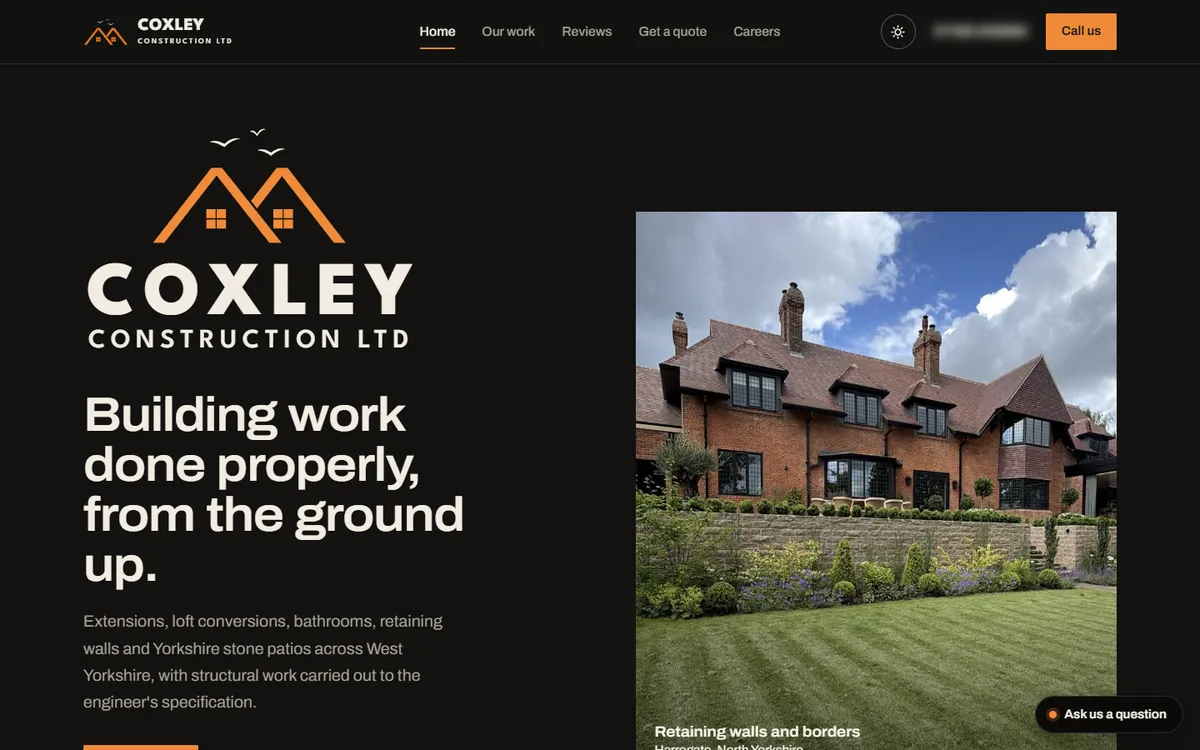
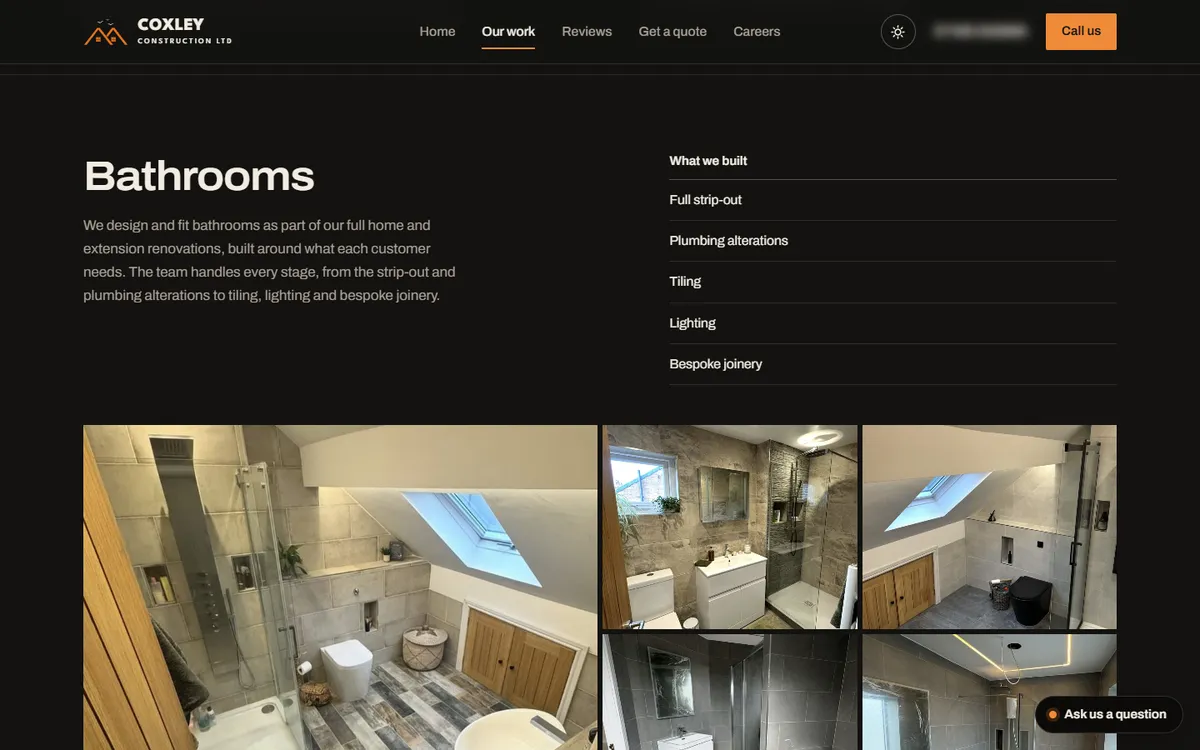
Wide layouts give the photos room: the full menu and phone number sit in the header, and each project shows its photos as a grid.

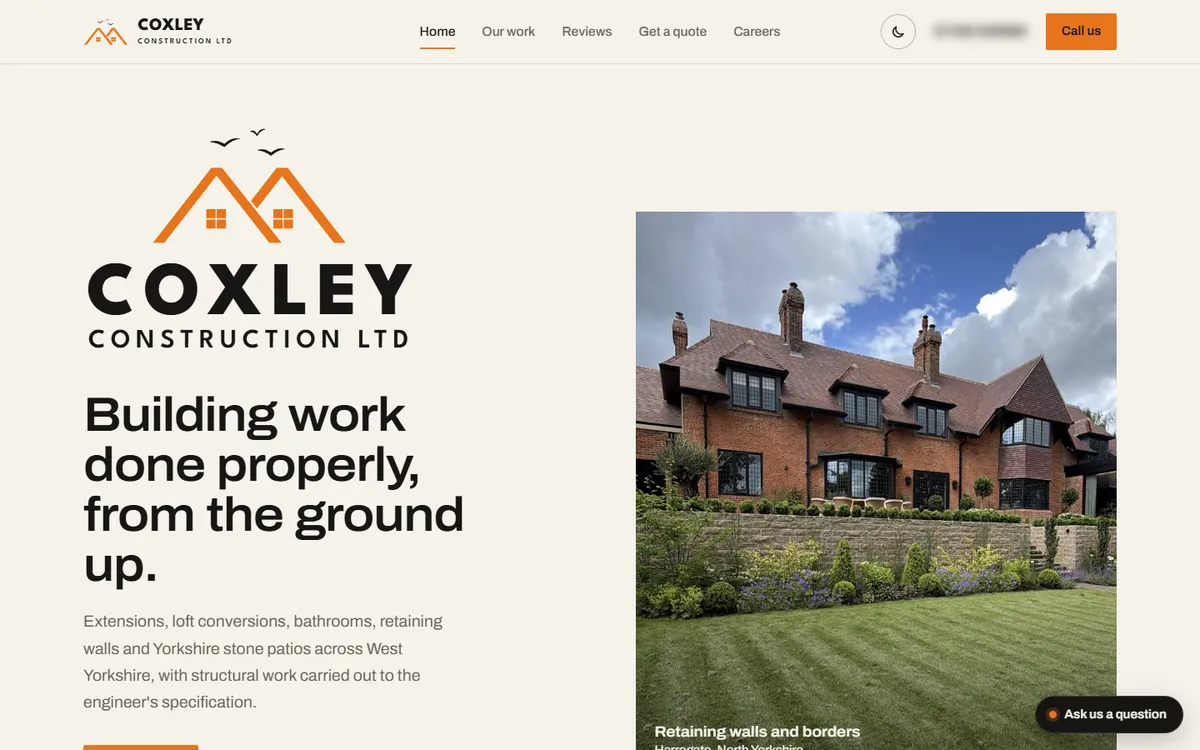
Coxley Construction homepage on a laptop: logo, headline and a slideshow of finished jobs
Home: the logo, what they build, and a slideshow of finished jobs.
Our work page on a laptop showing the Bathrooms project with its photo grid
Our work: each project with its write-up, what was built and a photo grid.

The website · Mobile

On a phone

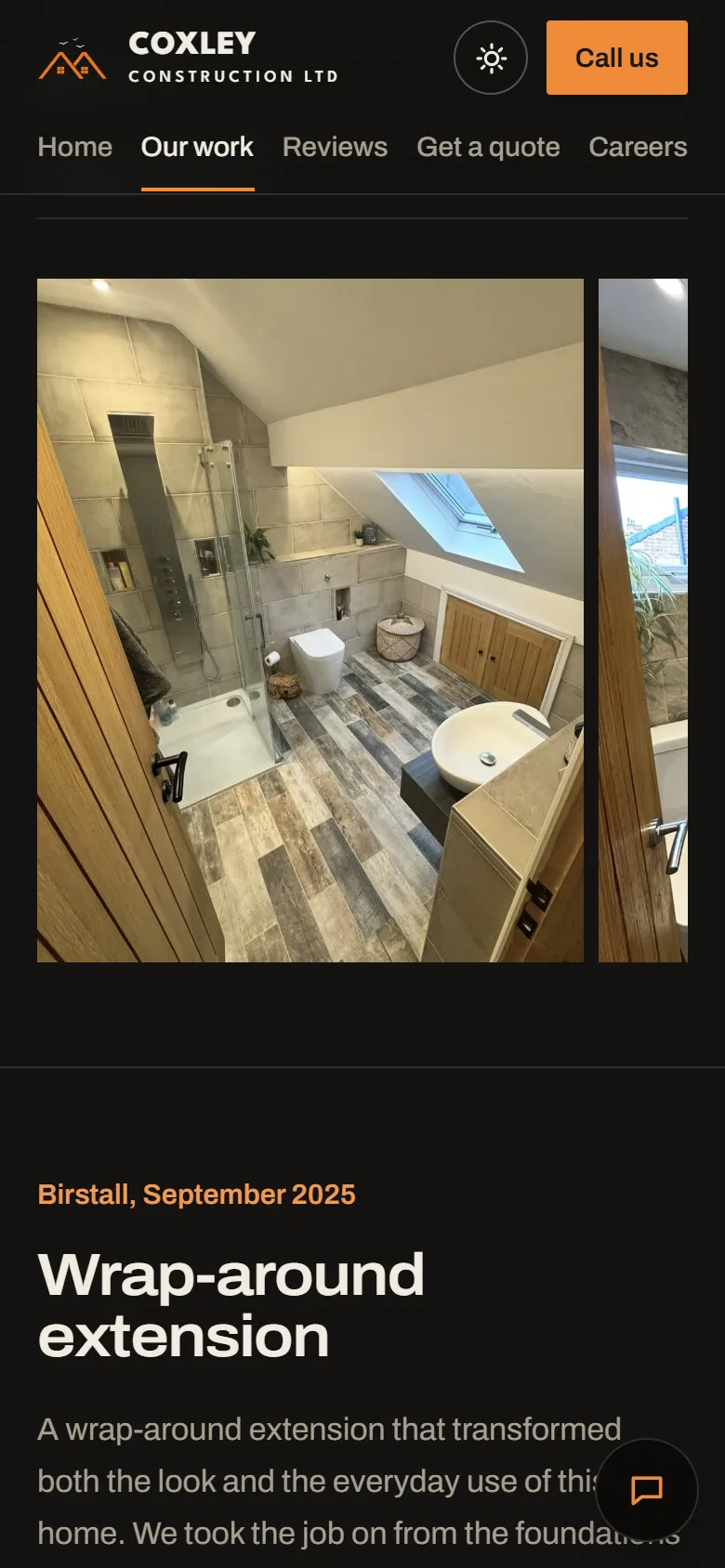
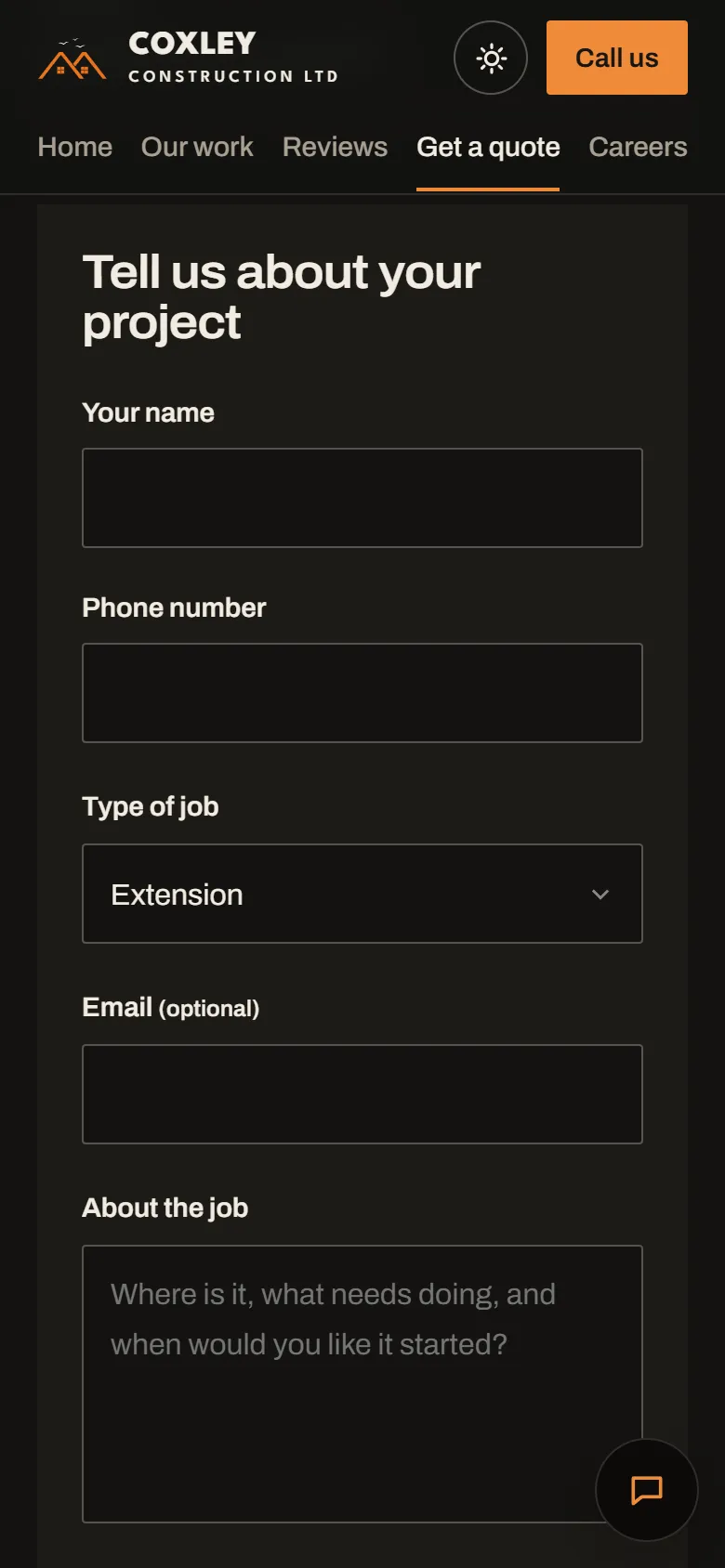
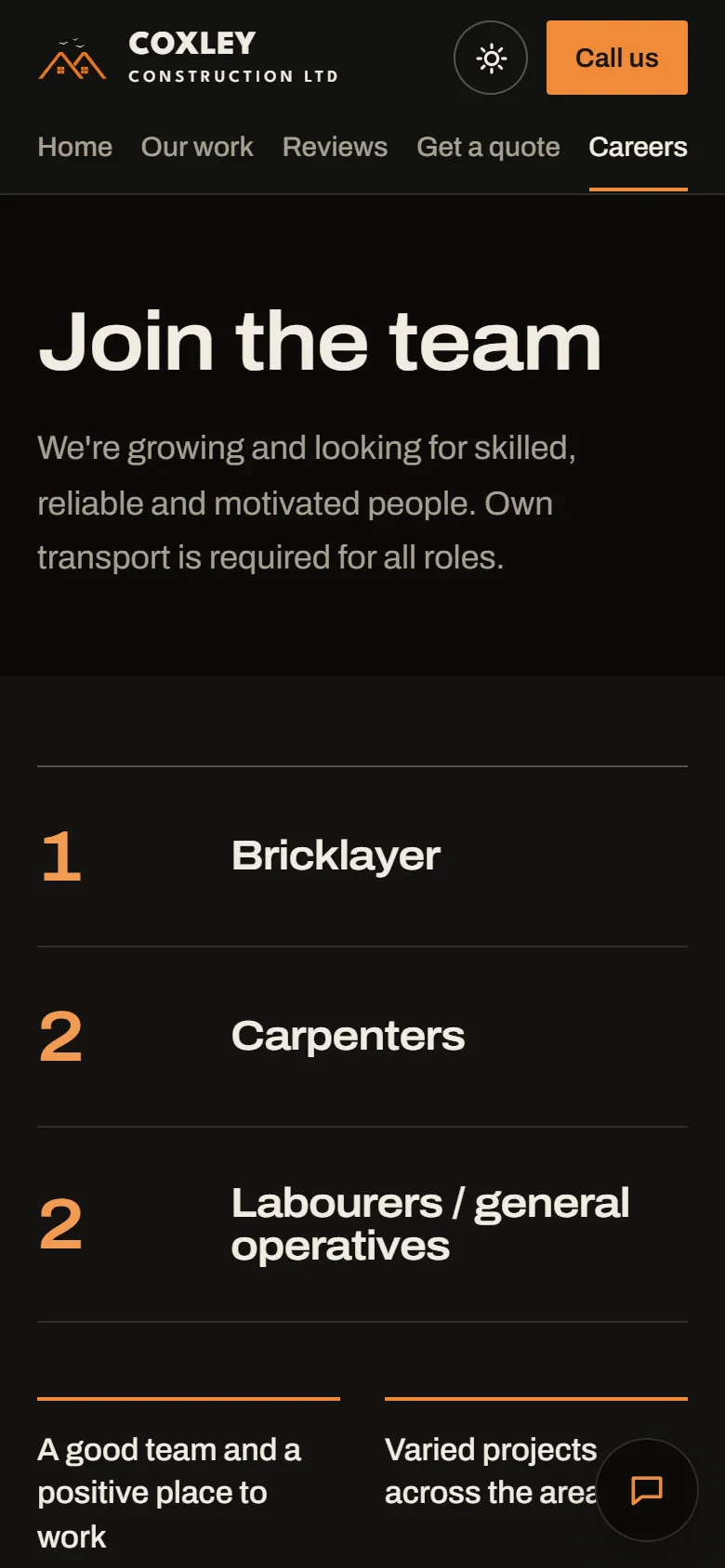
Most visitors arrive on a phone, so the layout changes rather than just shrinking: the menu becomes a row you scroll, Call us stays one tap away, project photos swipe sideways, and forms stack into one column.

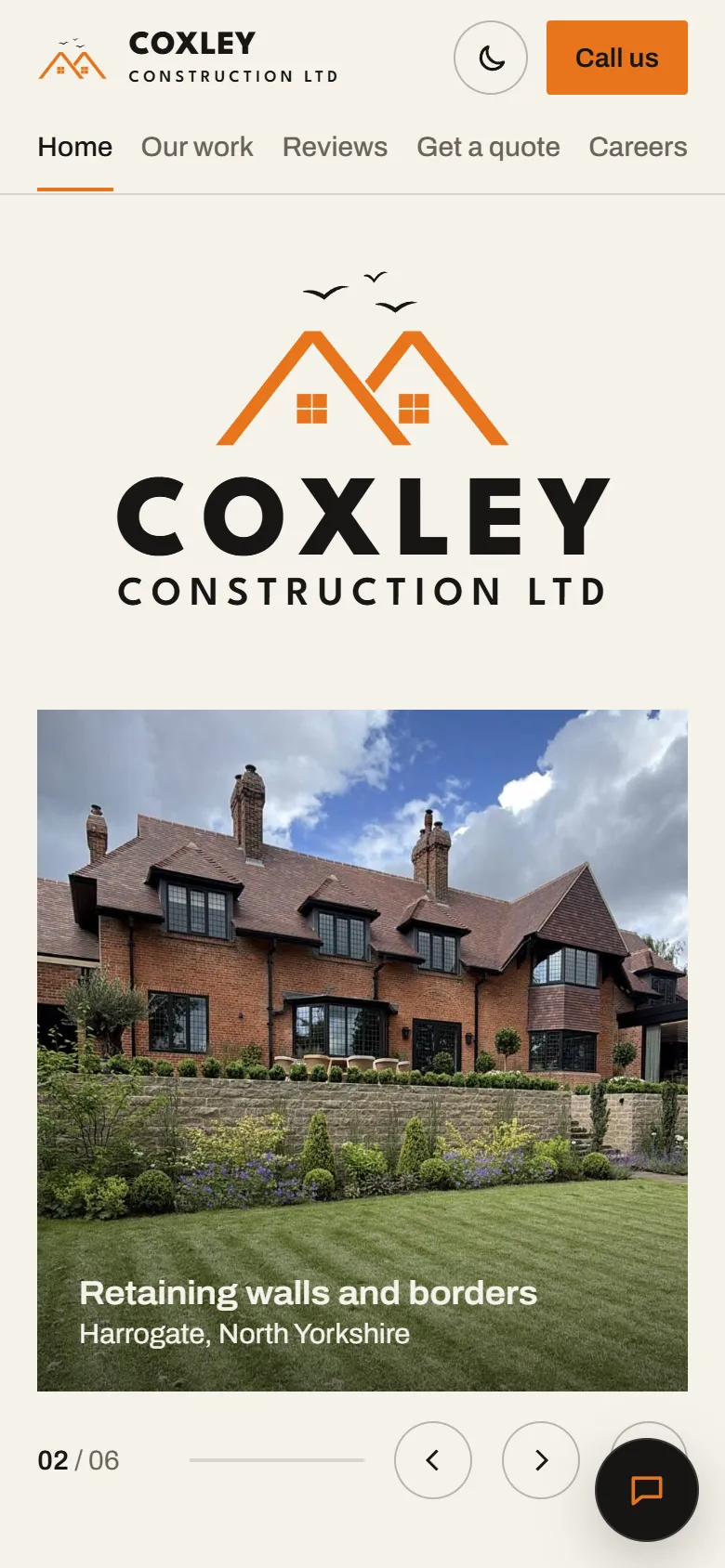
Coxley homepage on a phone
Home
Project photos on a phone in a sideways swipe
Our work
Get a quote form on a phone
Get a quote
Careers page on a phone listing open roles
Careers

Day and night mode

Light by day, dark by night

The site follows each visitor's phone or computer setting, and a moon and sun button in the header switches it by hand. The choice is remembered, and the owner's dashboard uses the same setting.

Homepage on a laptop in day mode, cream background
Day · desktop
Homepage on a laptop in night mode, near-black background
Night · desktop
Homepage on a phone in day mode
Day · phone
Homepage on a phone in night mode
Night · phone

The owner's dashboard

Run from a phone, part by part

Each part has one job, and they're linked so the work flows from one to the next. The coloured labels are the buttons that hand it on. The screens below use one made-up set of customers and workers throughout, so you can follow the same jobs from enquiry to payment.

Customers screen with a new enquiry from Sarah Bennett for a kitchen extension

Try it on your phone

The same dashboard, set up for a made-up building firm. Tap around, add an invoice, run pay. Nothing is saved, and a reload resets it.

Try the live demo
  1. Website enquiryBook a visit
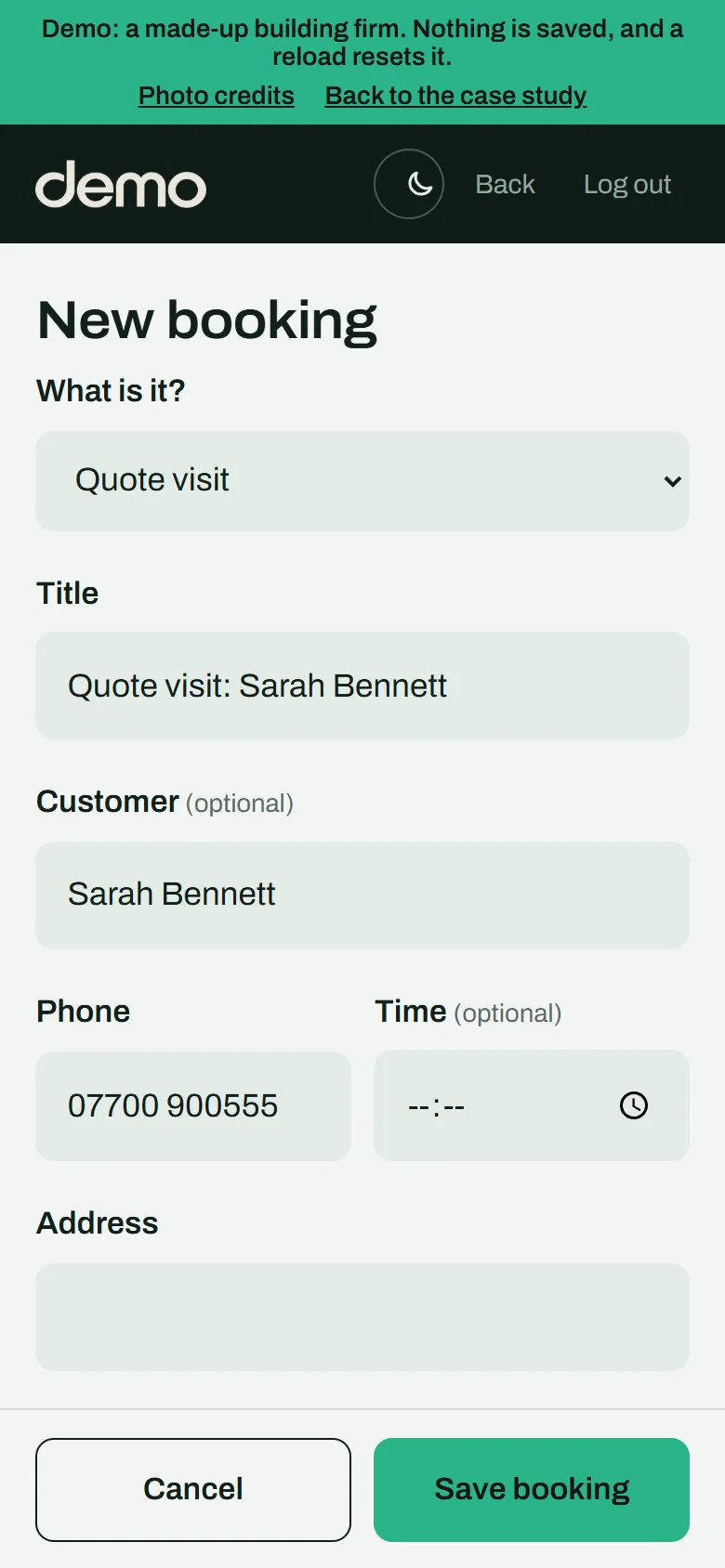
  2. Quote visitAdd a booking
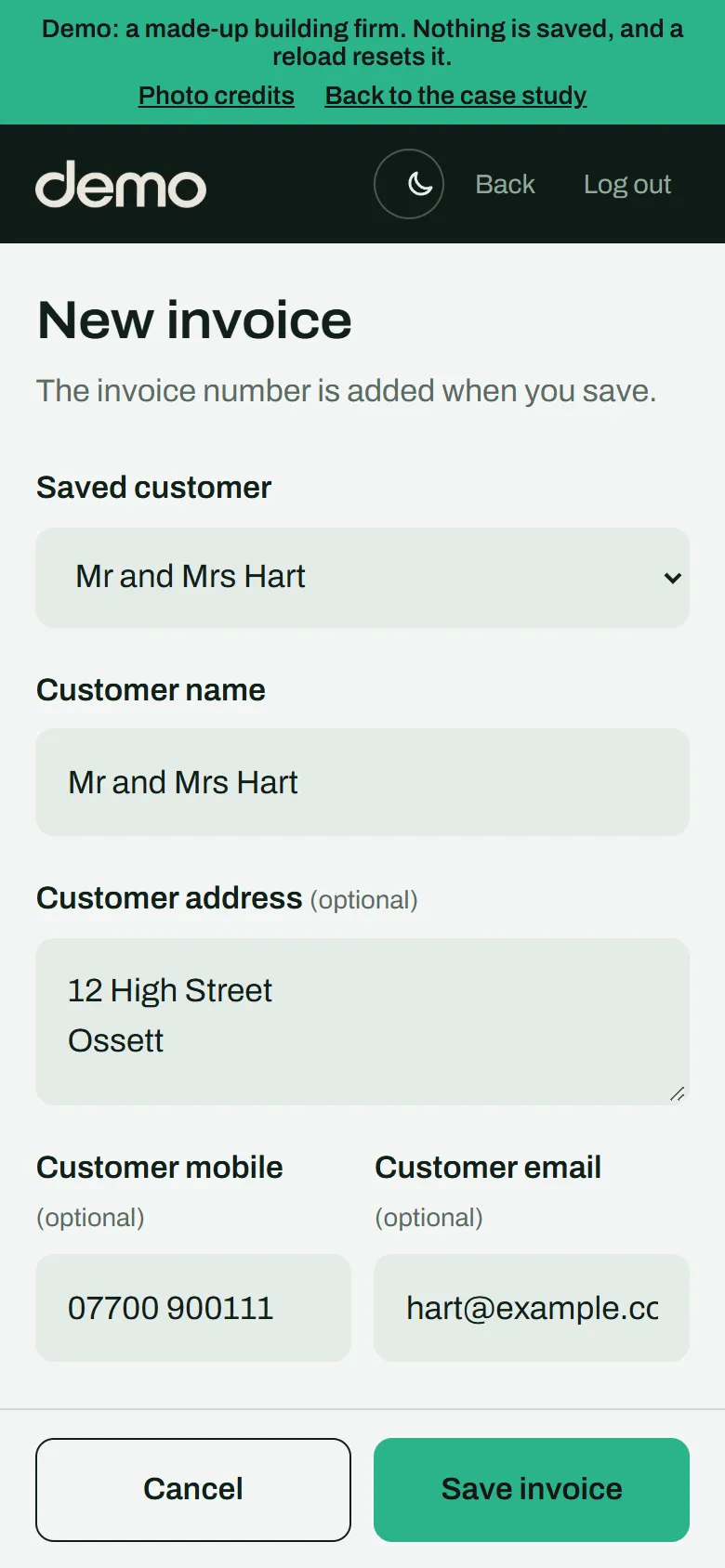
  3. Job on the calendarInvoice this job
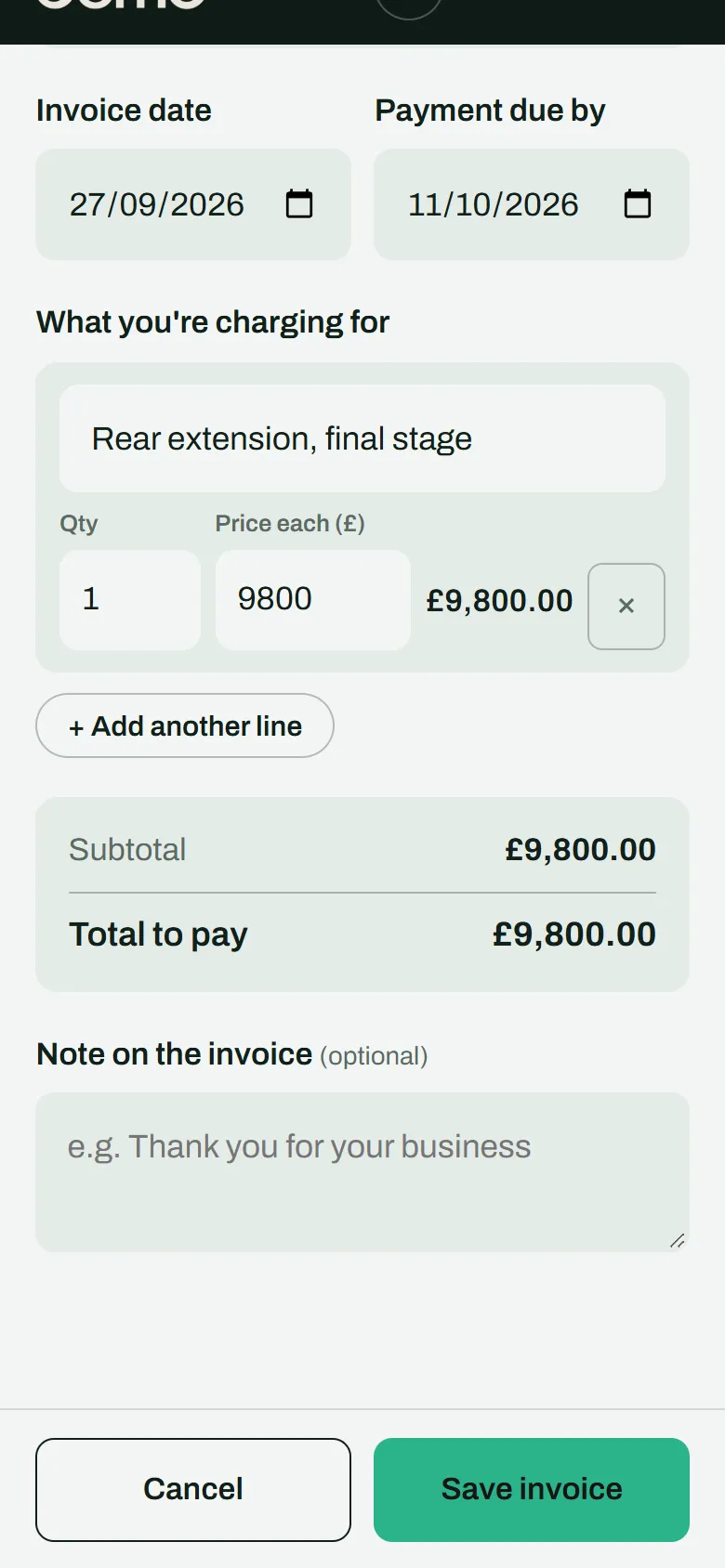
  4. Invoice
  1. Job on the calendarFill in days from the calendar
  2. Weekly payAdds up automatically
  3. Monthly CIS return
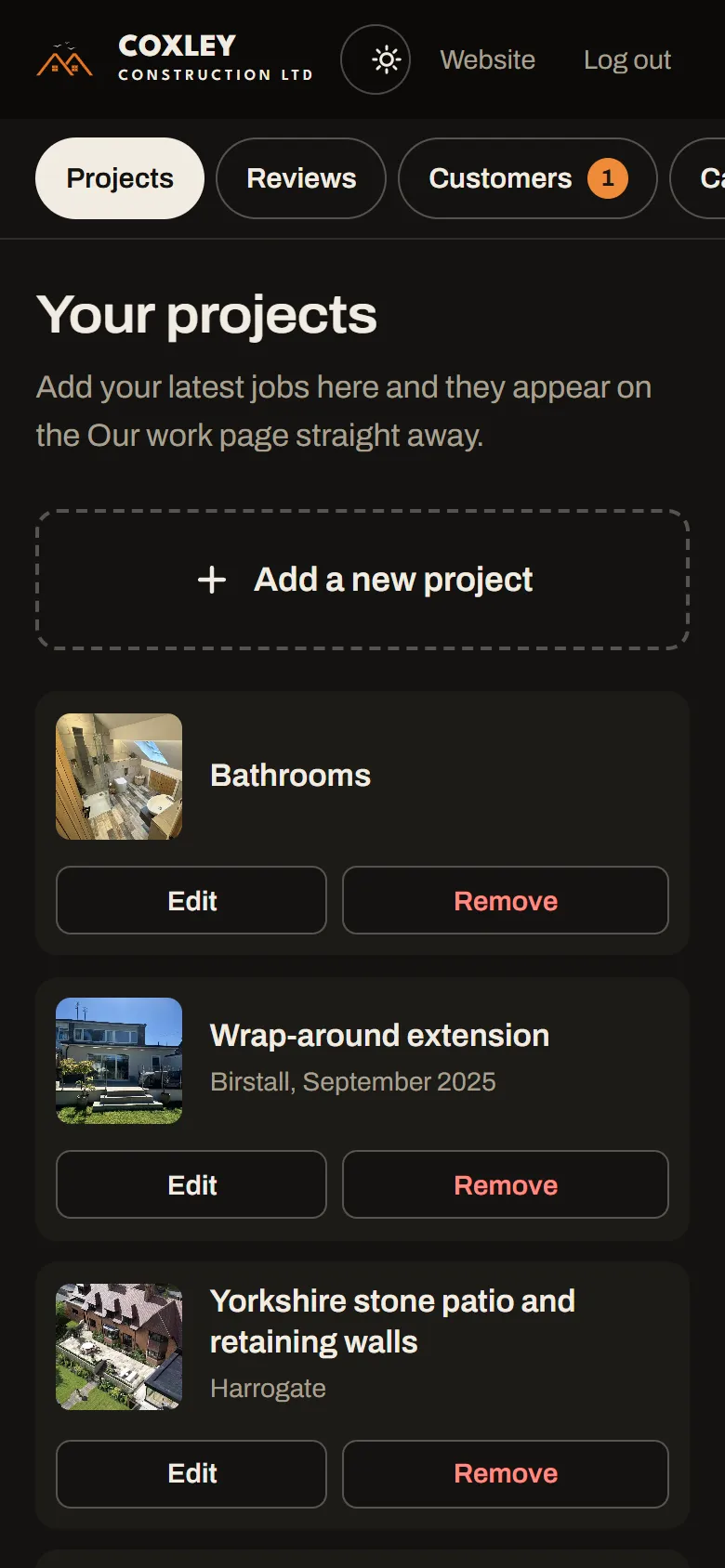
Dashboard projects list with Edit and Remove buttons for each job

Projects

Every job on the Our work page, managed from one list.

How it's used

After a job, tap Add a new project, pick photos from the camera roll and it goes live straight away. Photos are shrunk on the phone before uploading, so it stays quick even on site.

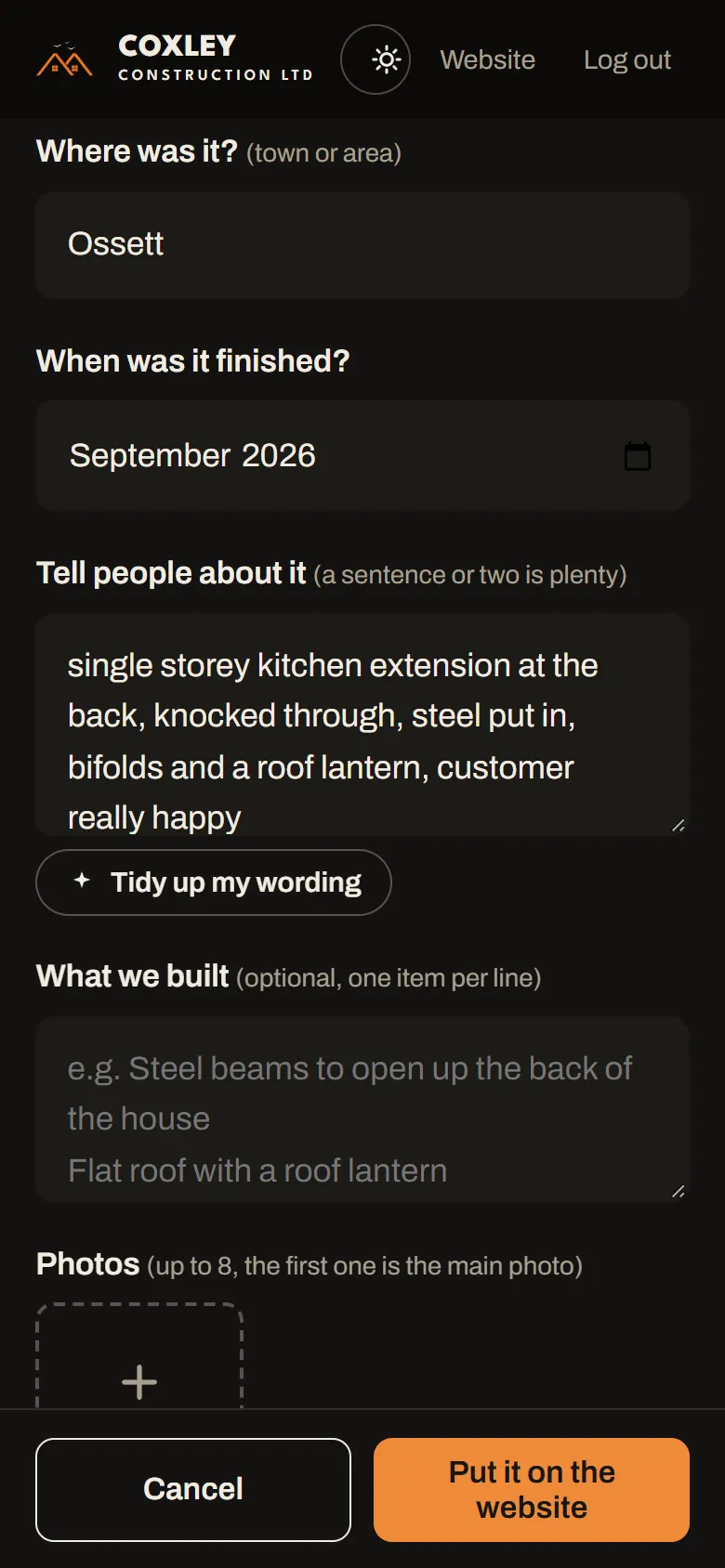
New project form with rough notes typed in and a Tidy up my wording button underneath

Tidy up my wording (AI)

Turns rough notes into a polished project write-up.

How it's used

Type what was done the way you'd say it, tap Tidy up my wording, and AI rewrites it into a clear description for customers. The result can be edited before it goes on the site.

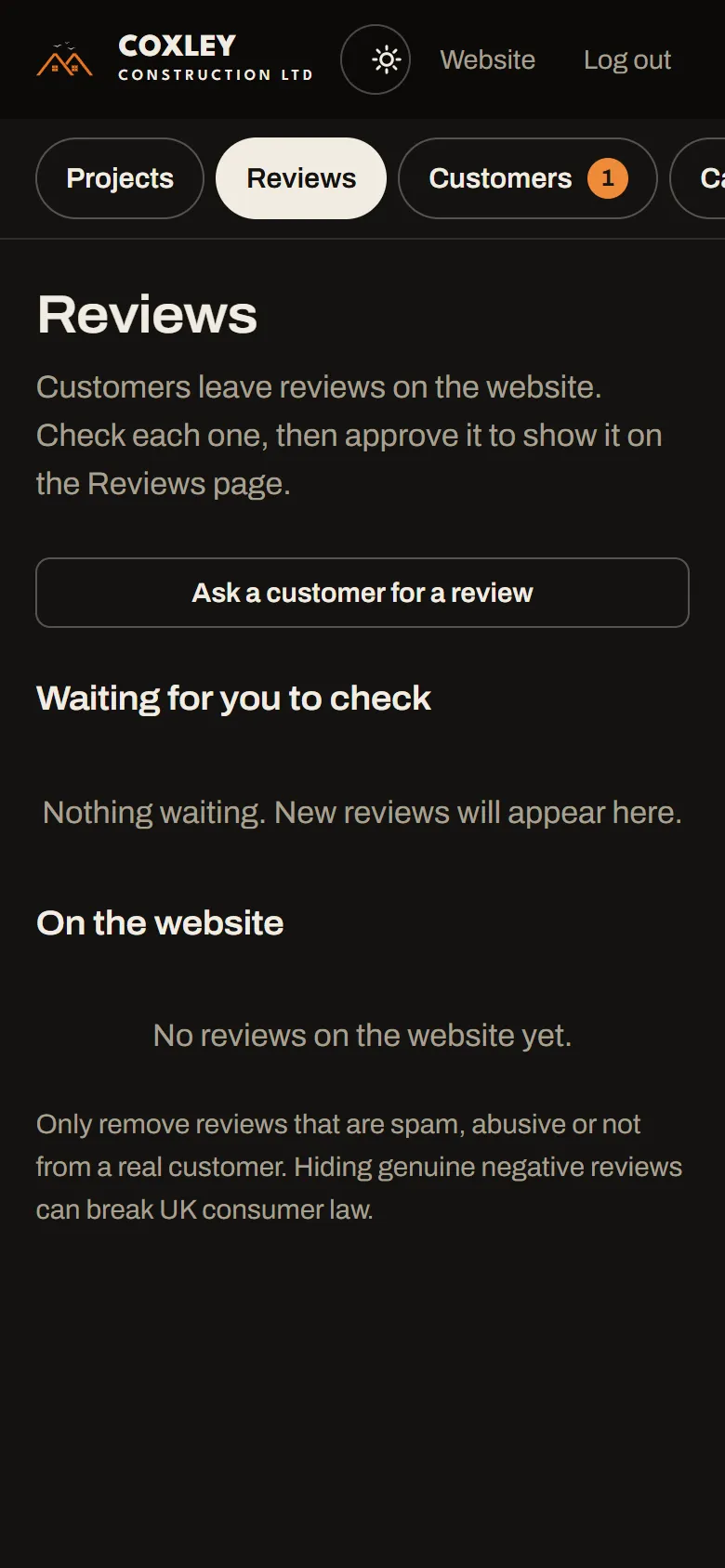
Reviews screen with an Ask a customer for a review button and the approval lists

Reviews

Customer reviews stay hidden until they're approved.

How it's used

At the end of a job, Ask a customer for a review sends a ready-written message with a link. New reviews wait here for a quick check, with a reminder that only spam or fake reviews should be removed, to stay within UK consumer law.

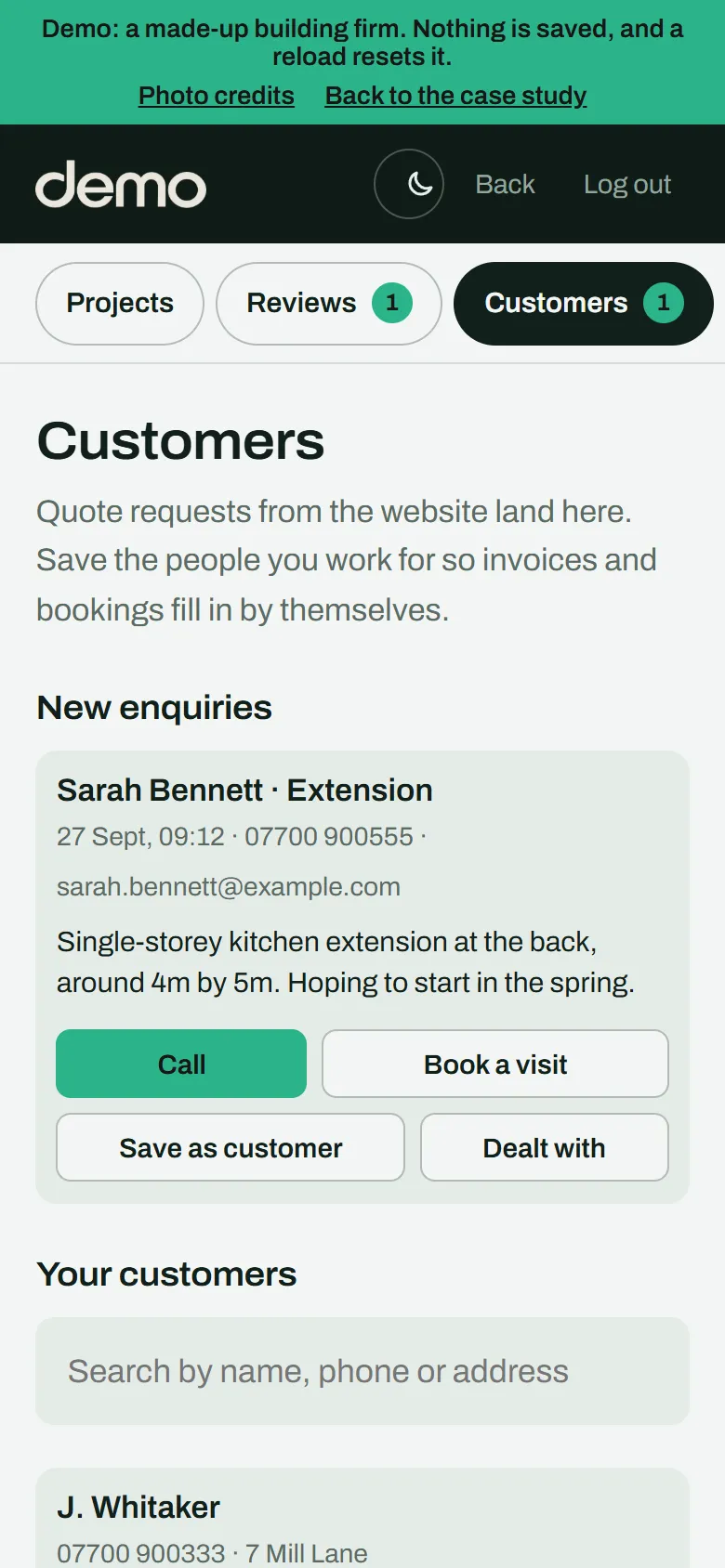
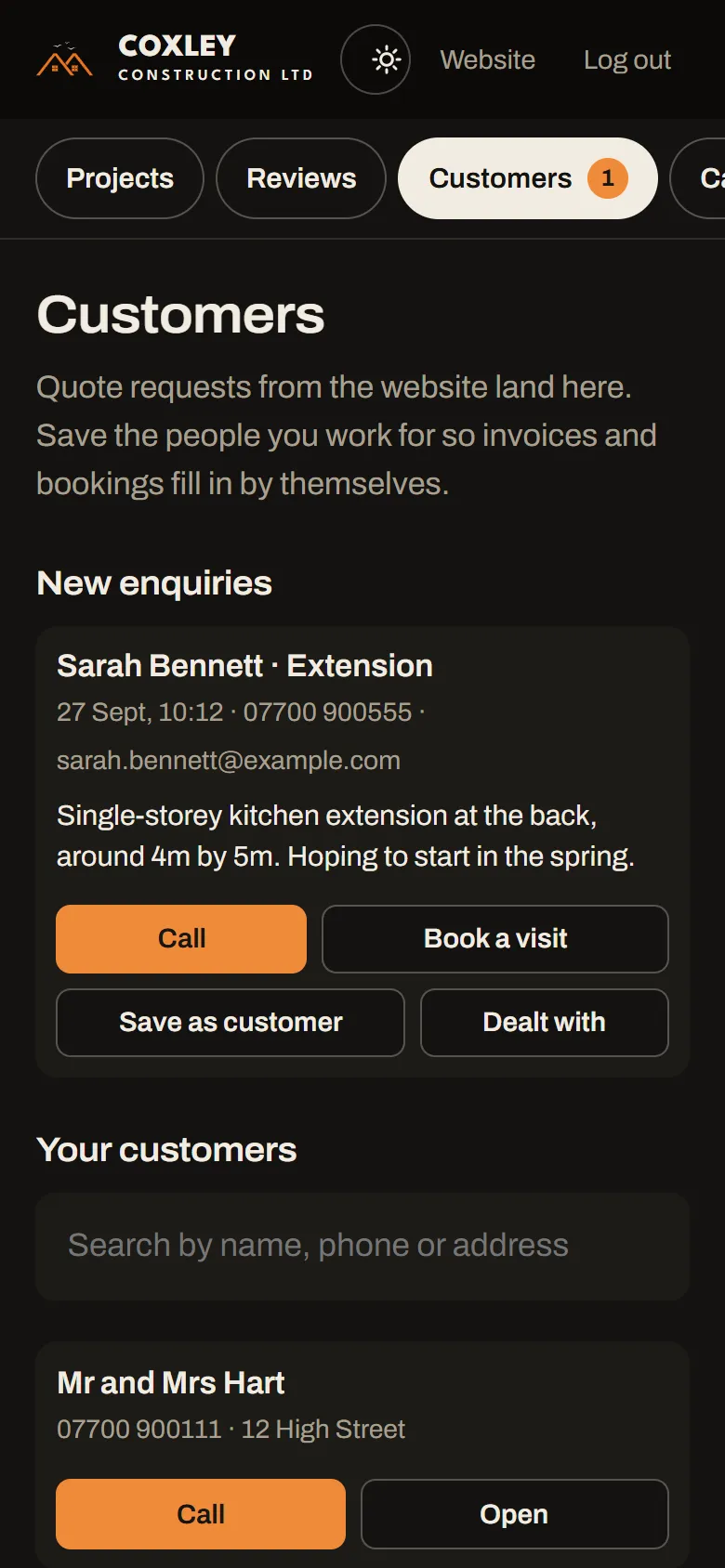
Customers screen showing a new website enquiry with Call, Book a visit, Save as customer and Dealt with buttons

Customers and enquiries

Quote requests from the website land here with a badge, next to the saved customers.

How it's used

Each enquiry has buttons to call straight from the screen, book a quote visit, save them as a customer or mark it dealt with. Saved customers fill in their details on invoices and bookings automatically.

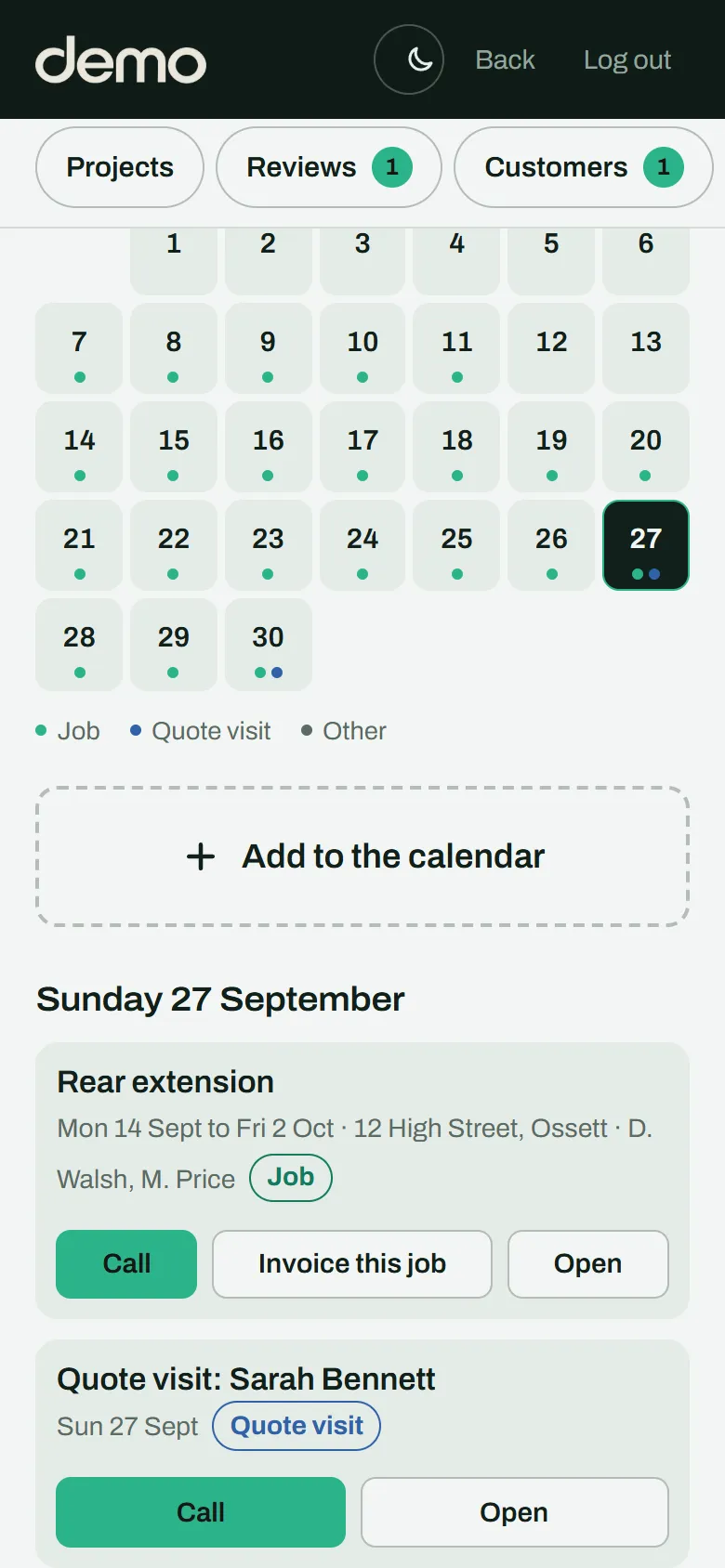
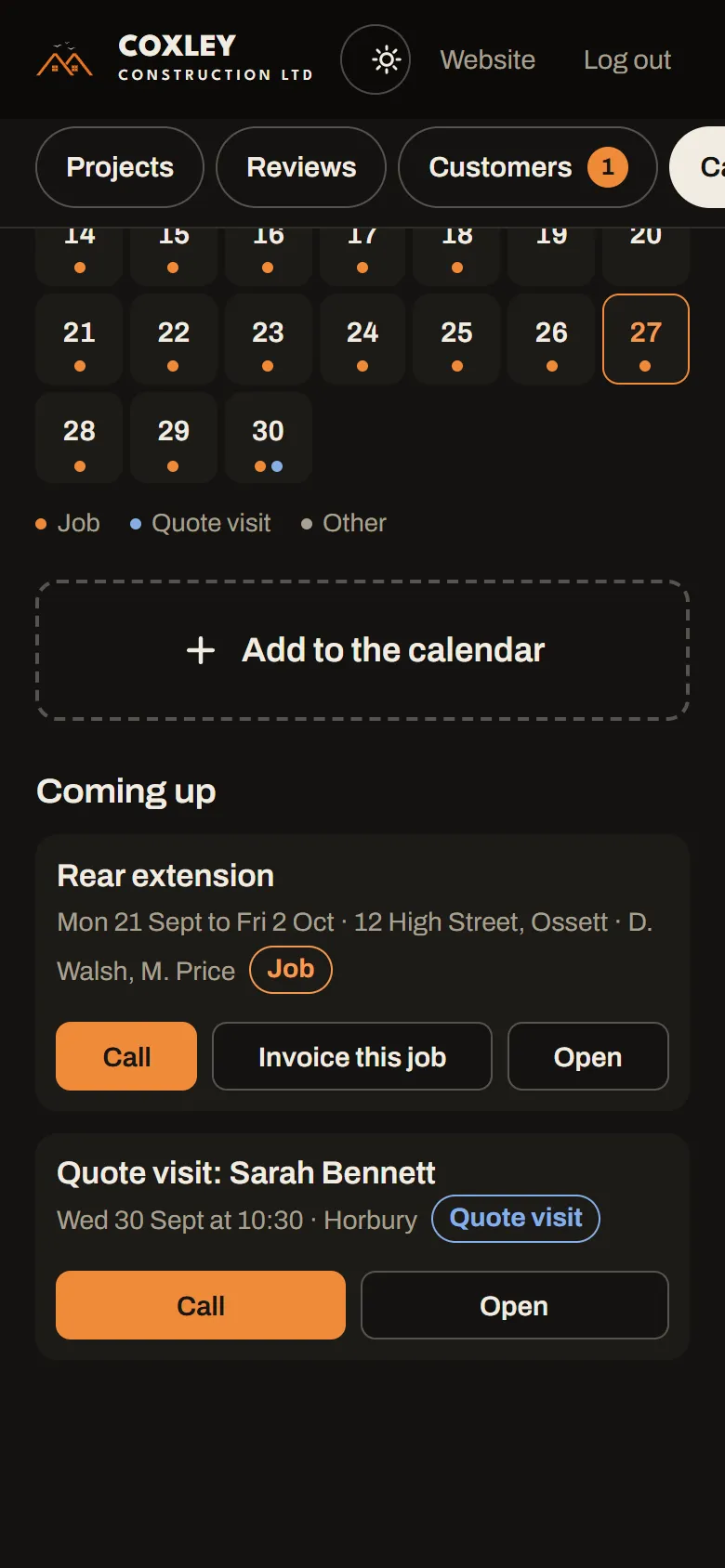
Coming up list with an Invoice this job button on a job, and another job marked Invoiced

Calendar

Jobs, quote visits and everything else, on a month view with a Coming up list.

How it's used

Book a job across several days and tick who's on it, or add a quote visit with a time. When a job is done, Invoice this job starts the invoice with the customer and job already filled in, and the booking is then marked as invoiced.

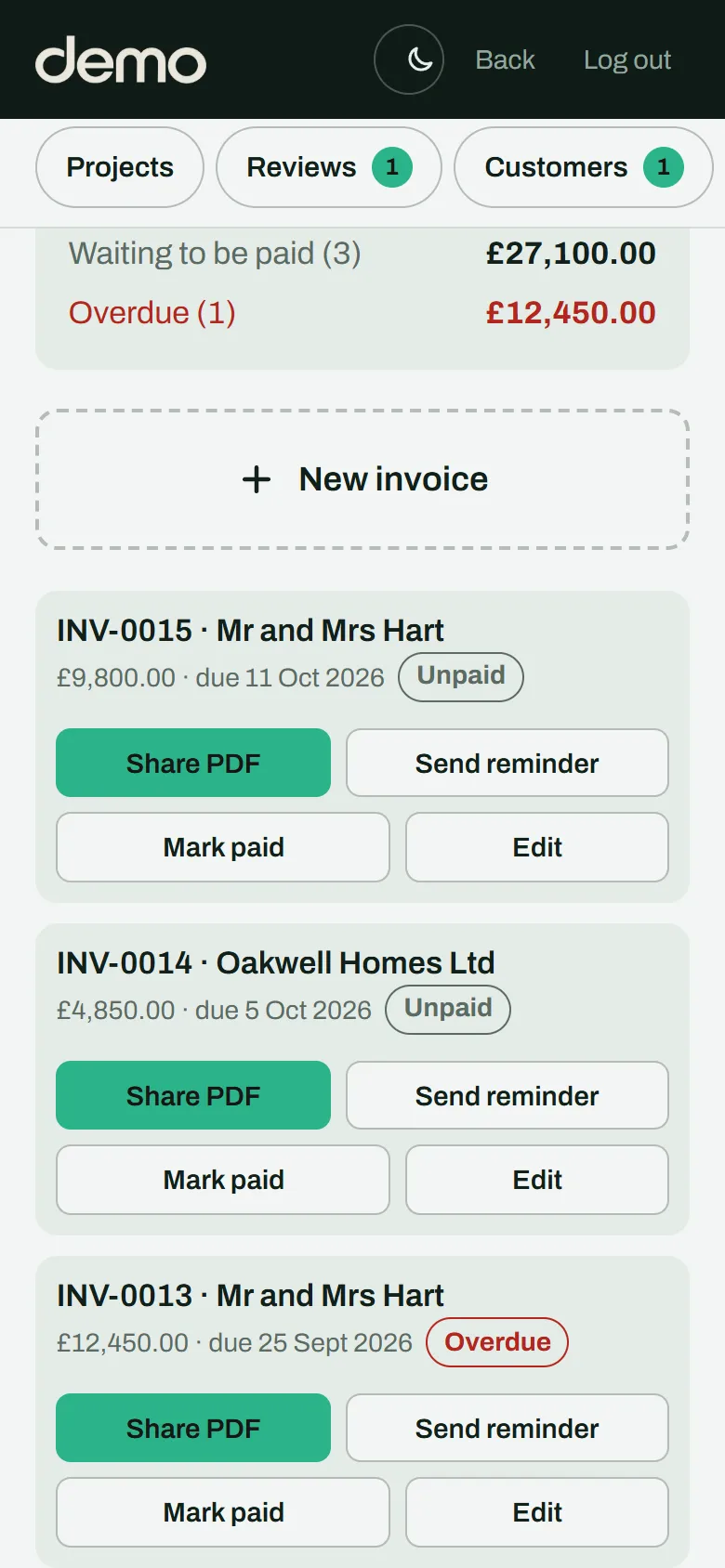
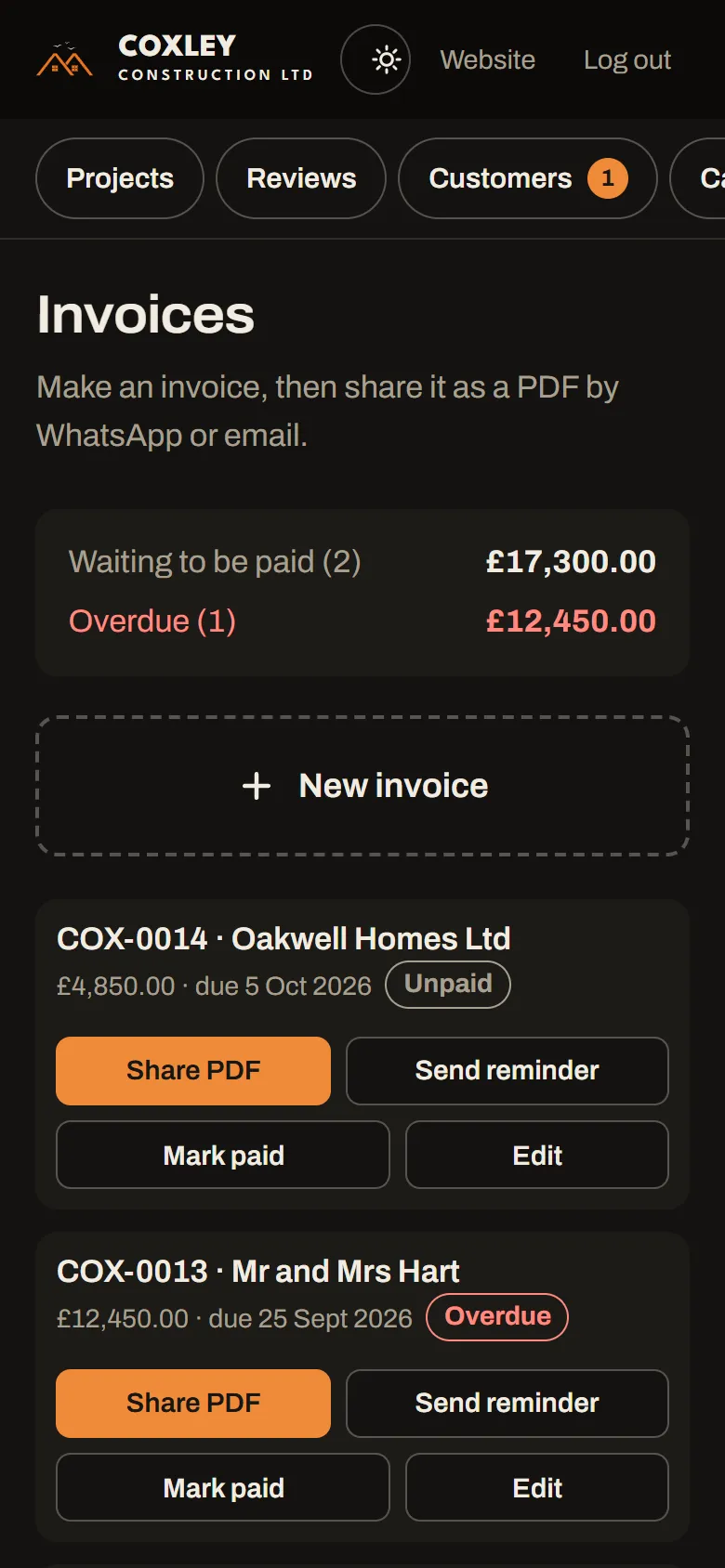
Invoices screen with the total waiting to be paid and Share PDF buttons

Invoices

Numbered invoices, with what's unpaid and overdue at the top.

How it's used

Most invoices start from a calendar job or a saved customer, so the details are already there and only the prices need adding. Share PDF sends it by WhatsApp or email, Send reminder writes a polite chaser with the bank details, and a spreadsheet export is ready for the accountant.

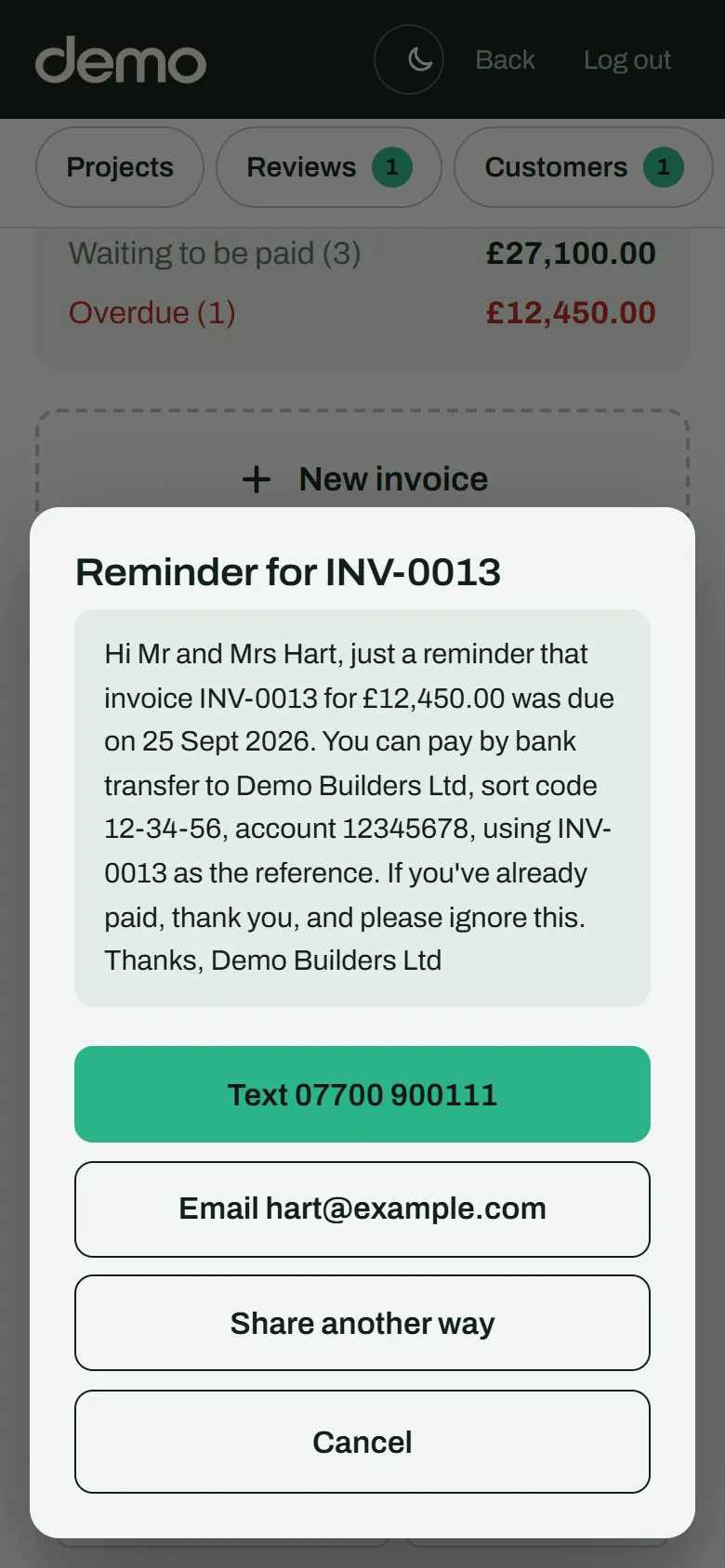
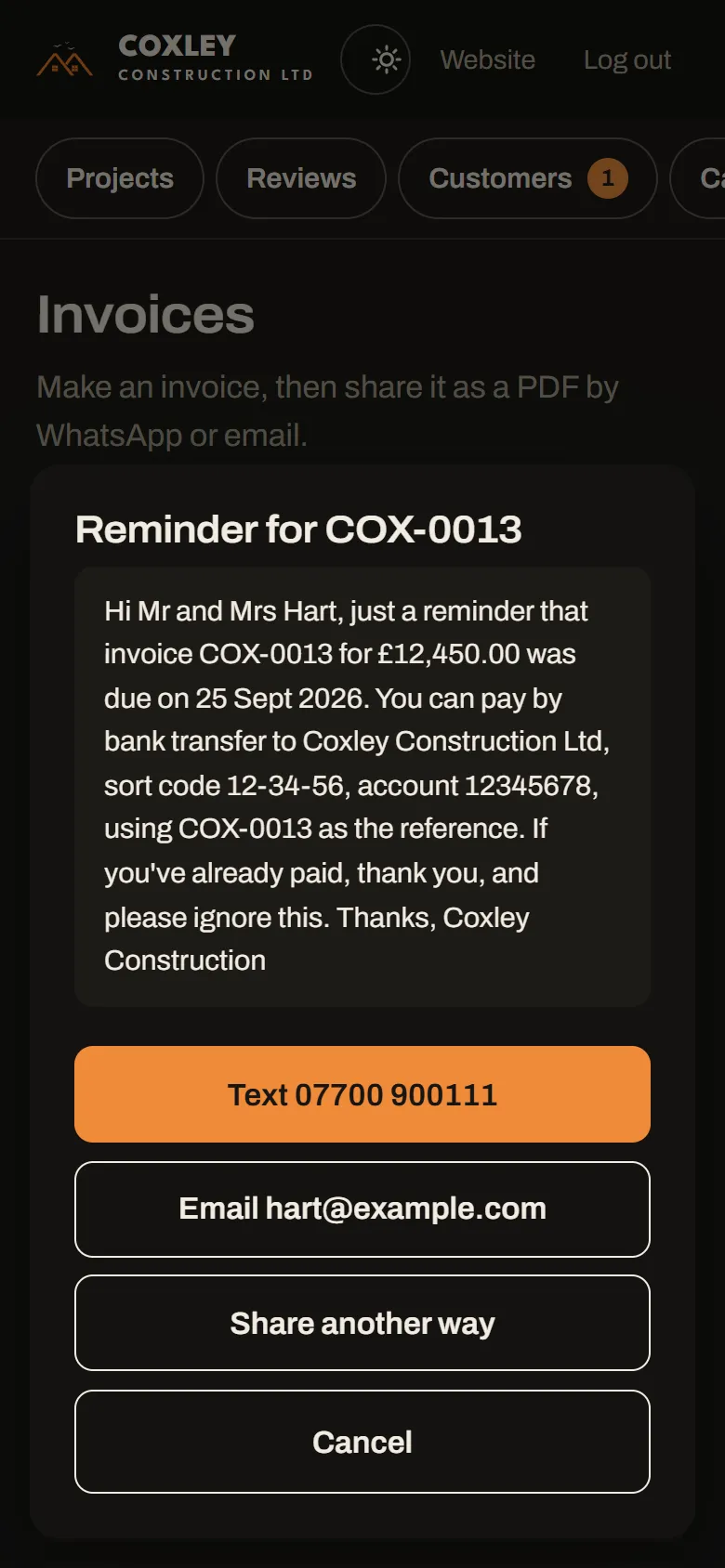
Payment reminder ready to send, with buttons to text or email the customer or share another way

Reminders and messages

Chasing payment, or asking for a review, in a couple of taps.

How it's used

Send reminder writes a polite message with the amount, due date and bank details. Because each customer's mobile and email are saved, Text opens Messages with their number and the message already filled in, Email opens Mail the same way, and Share another way covers WhatsApp.

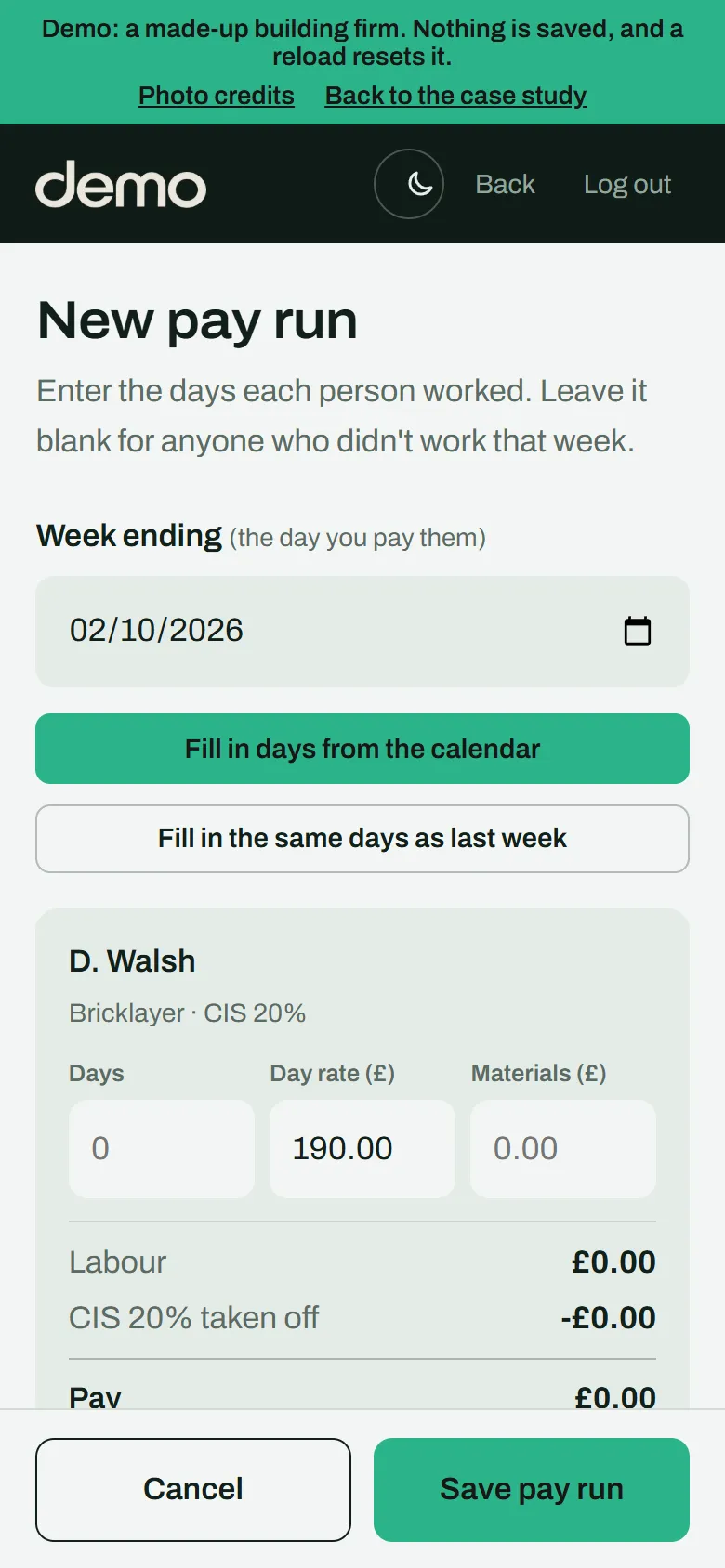
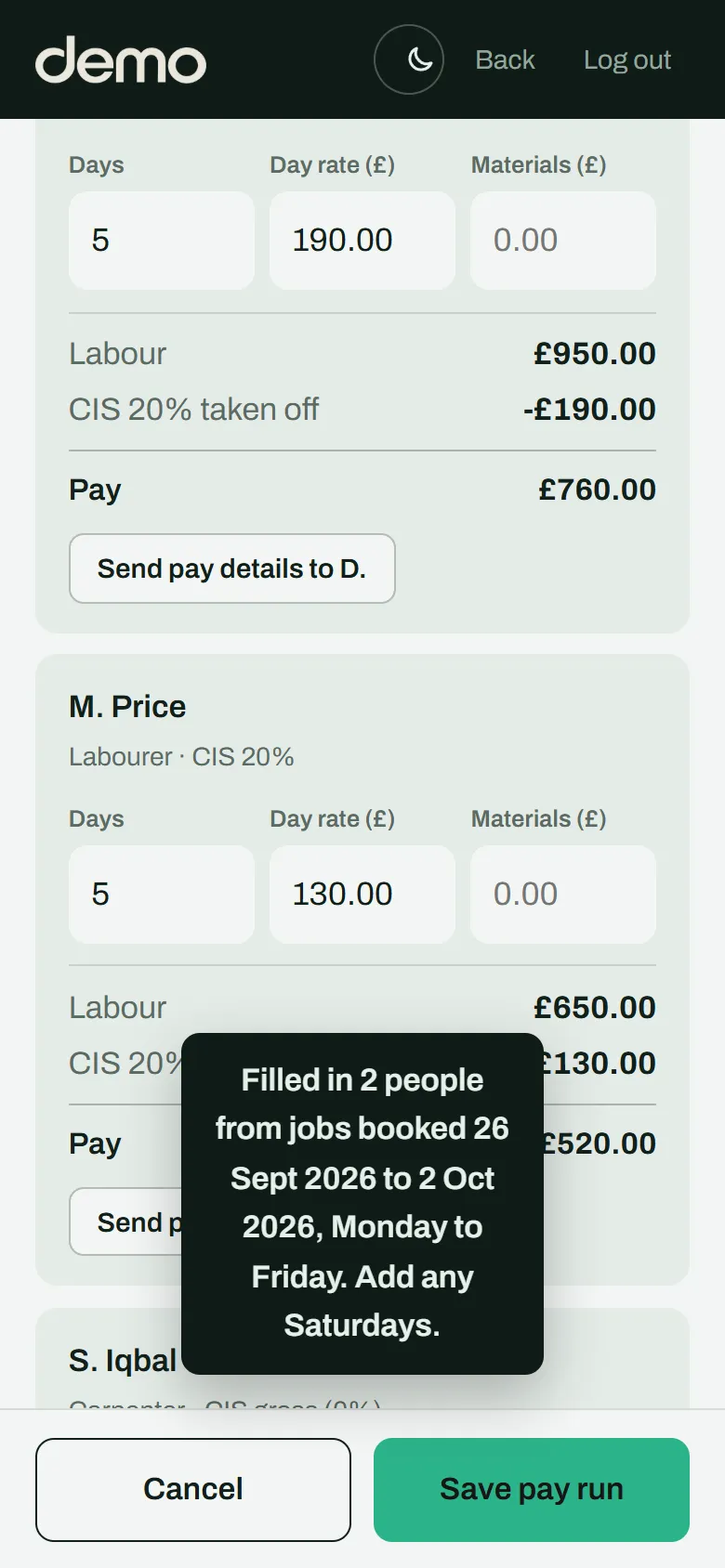
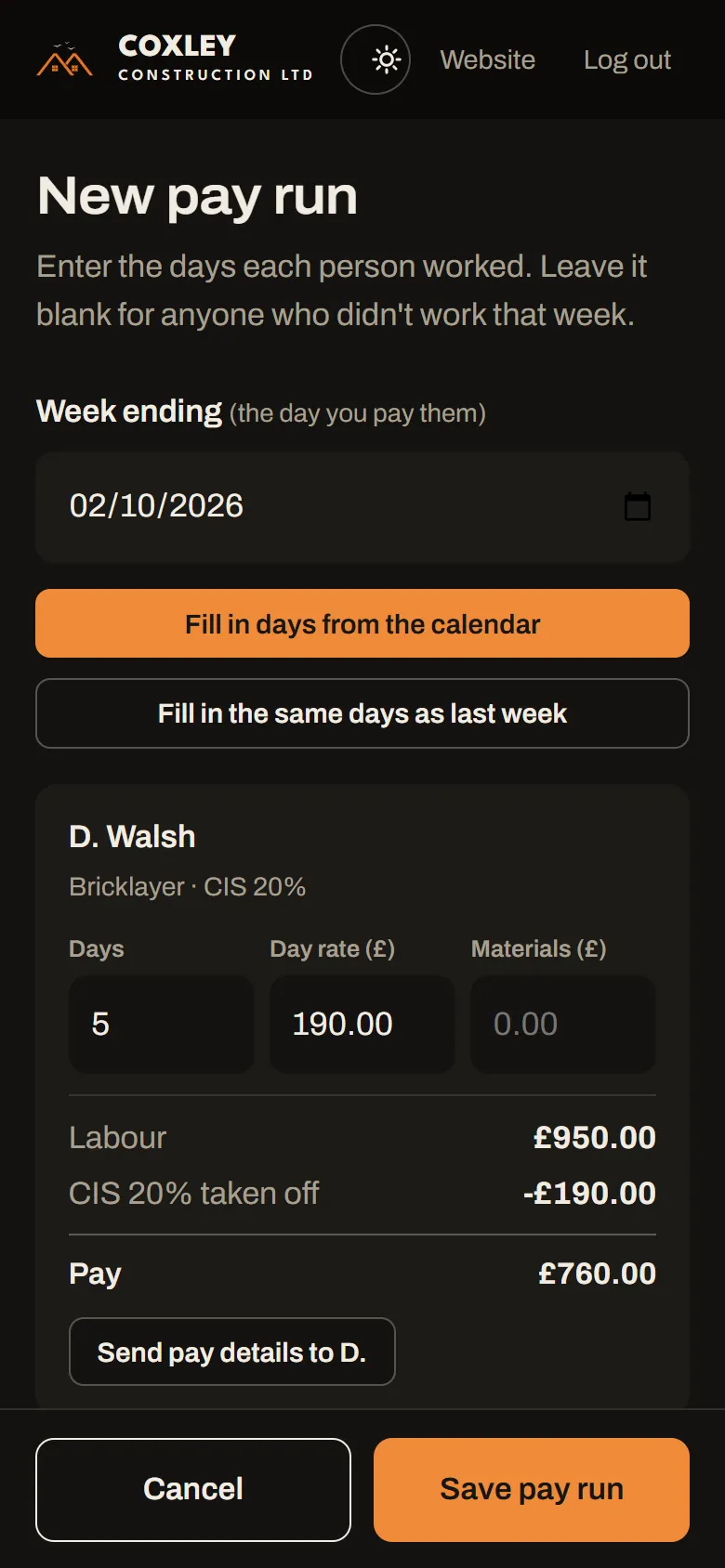
New pay run with days filled in from the calendar and pay worked out with CIS taken off

Weekly pay

Each week's pay for the subcontractors, with CIS taken off.

How it's used

Fill in days from the calendar counts the weekdays each person was booked on a job, so only Saturdays or days off need adding. It works out everyone's pay, and Send pay details messages each person their breakdown.

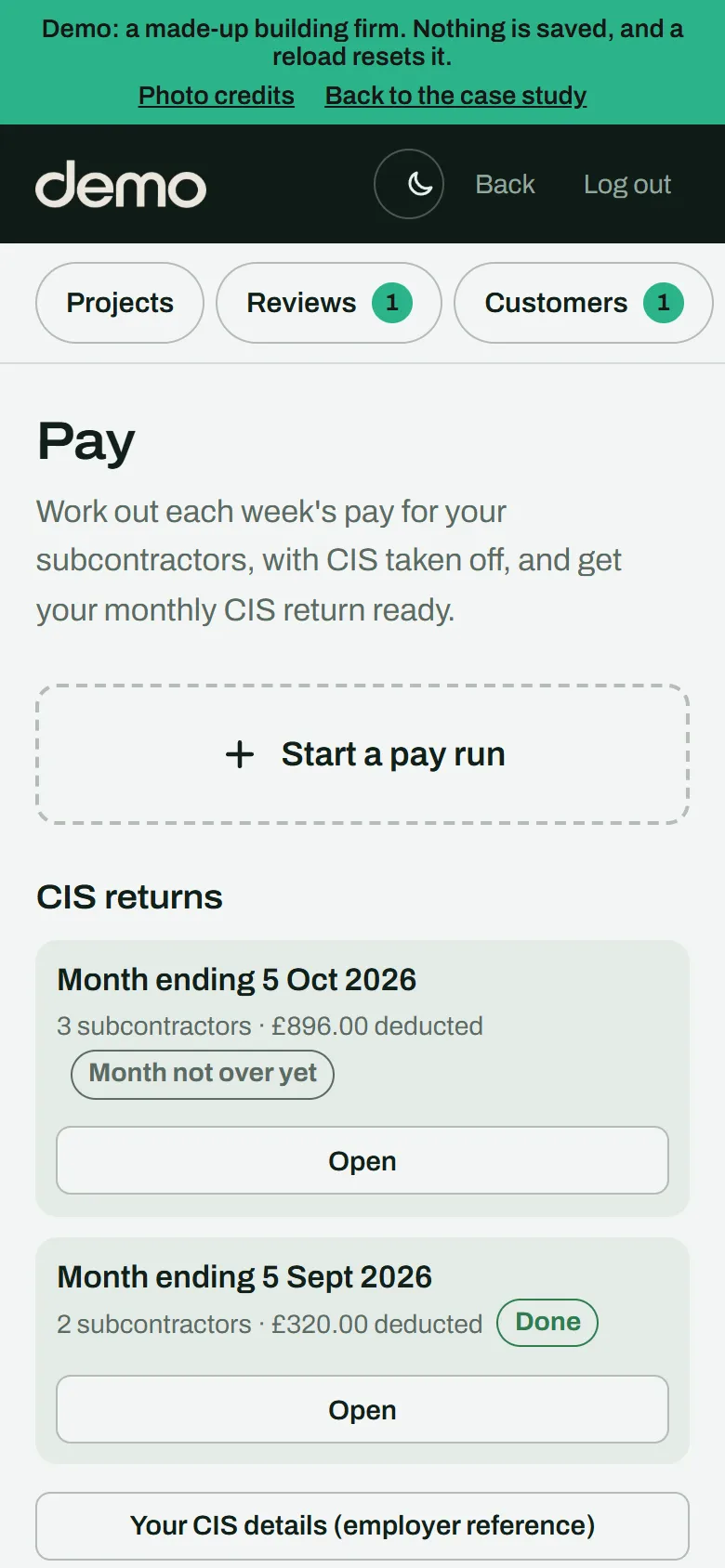
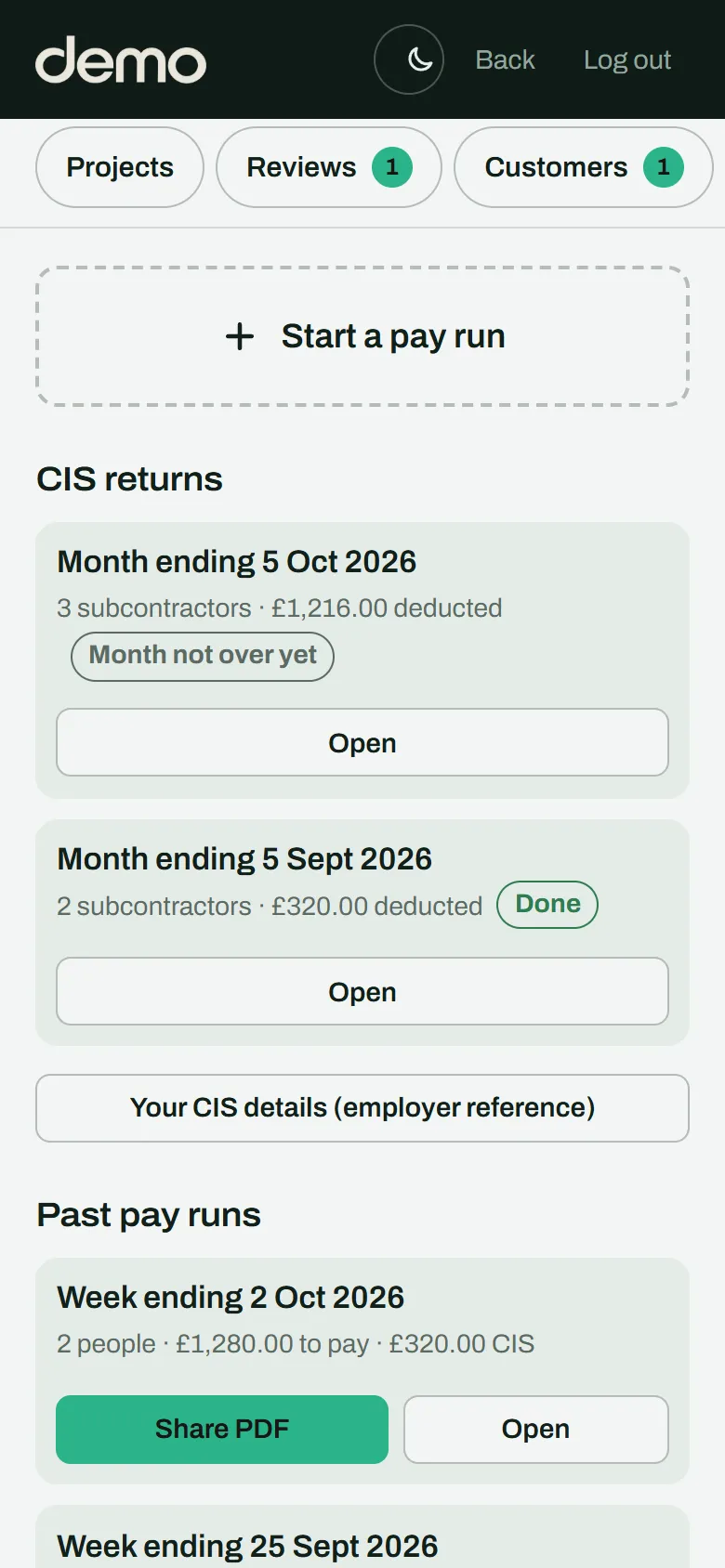
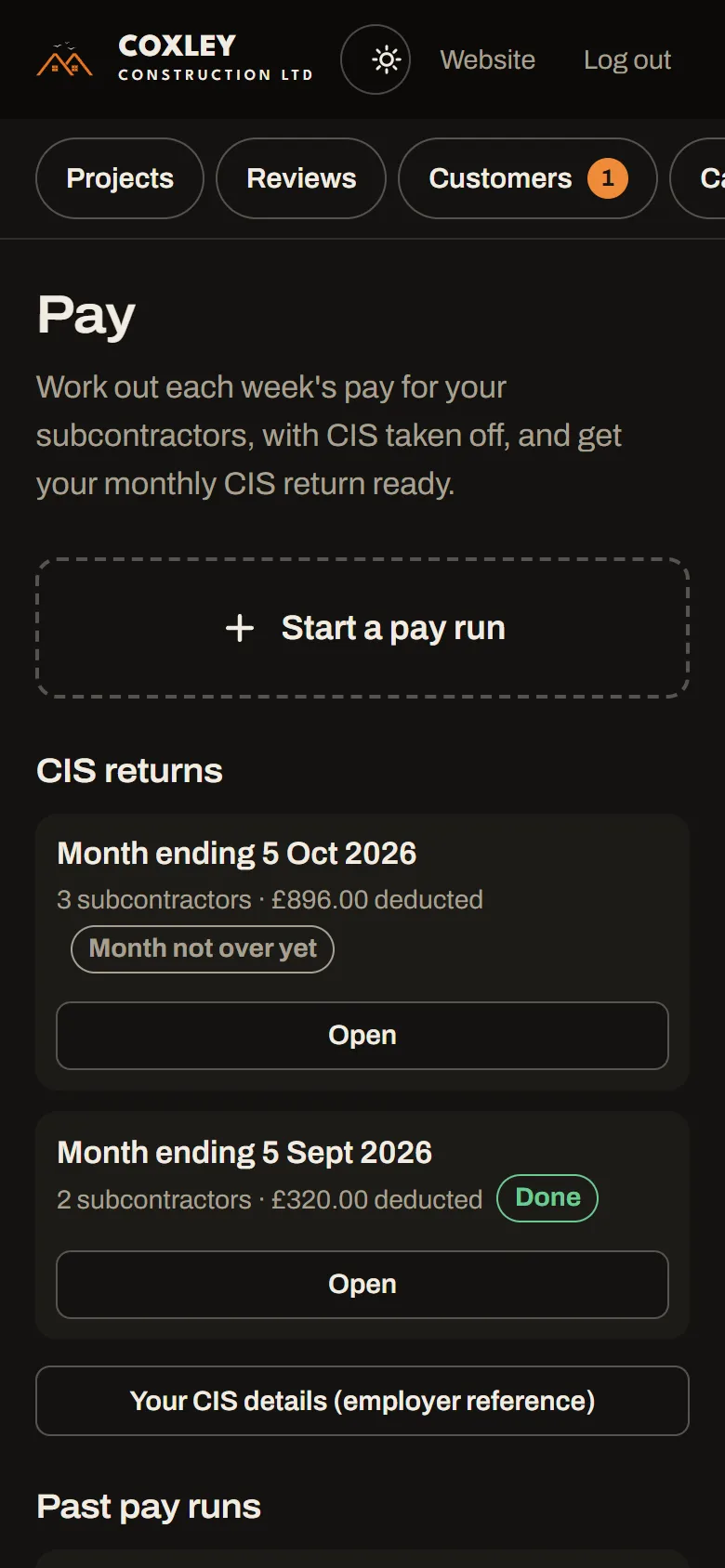
Pay screen with CIS returns by tax month and past pay runs

CIS returns

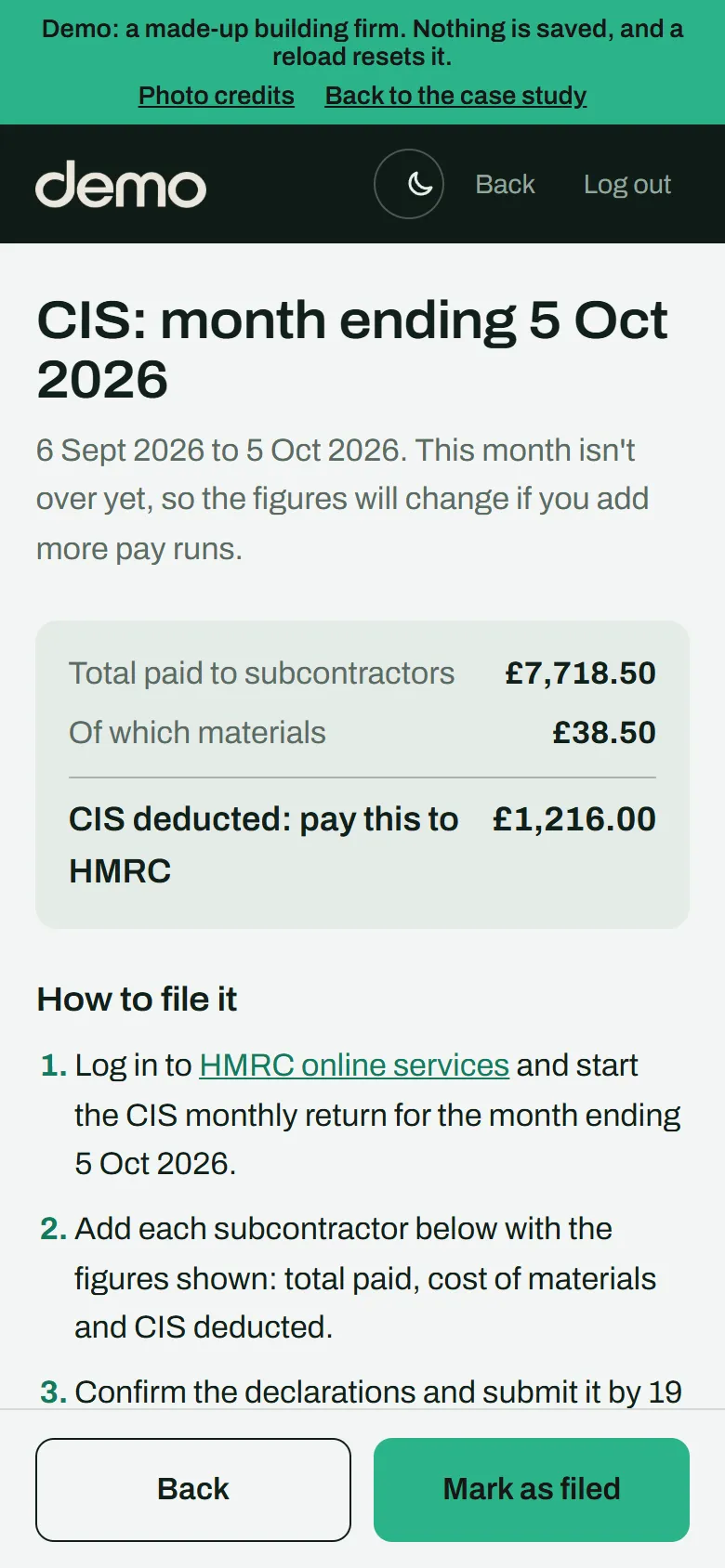
Each monthly CIS return, prepared from the weekly pay as the month goes on.

How it's used

At month end the figures for HMRC's return are already added up, with the deadlines. It makes each subcontractor's statement and keeps reminding until the return is filed and paid.